
Welcome back to other problem of the week that I had faced during build the dashboard in Power BI.
The information scattered across different tables 😨
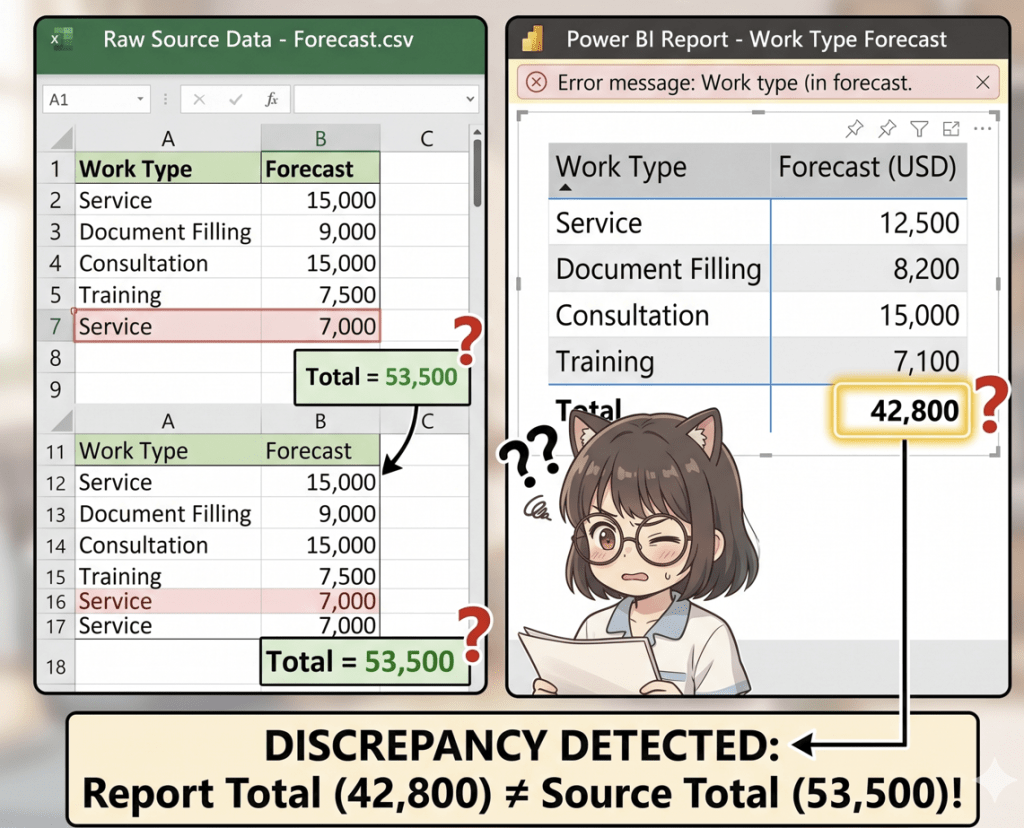
Data Model is likely causing the discrepancy between my source data and the dashboard visual.
😶 What is happened ?
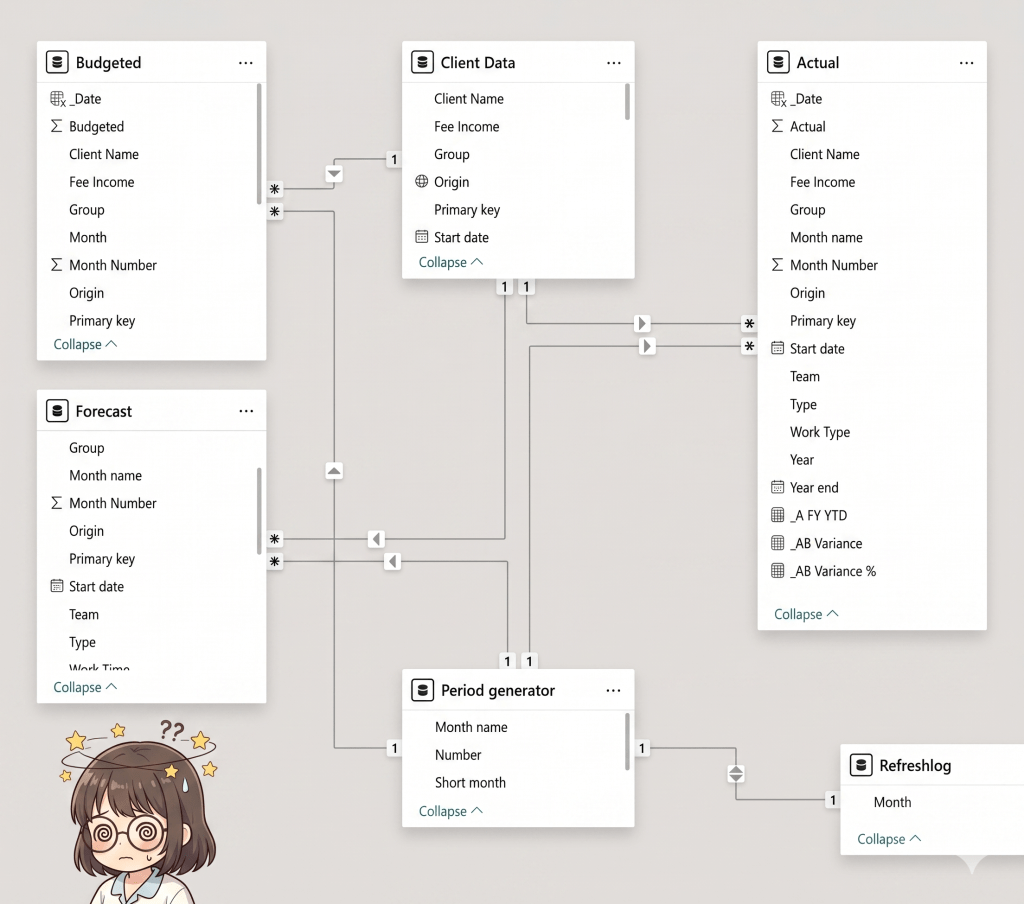
I used the column called “Work Type” from the Client data table in my table visual to categories type of work in Forecast table , but it cannot “reach” the Forecast table to filter the numbers correctly.
Additionally, it’s missing linked in Star Schema.
📖 Here is the lesson learned 📖
I should create “Dimension table”
Because using Client data as a middle-man to filter Forecast. If a client exists in the Forecast table but is missing from the Client data table, that forecast data will be excluded or grouped under “(Blank)”.
📌 Let’s build the bridge table
To accurate audit-trail of the data, instead of linking Client data table directly to Forecast table. We need to create “Dimension table”
- Create a Unique List: Create a new table that contains only one unique list of all “Work Types.”
- Connect Both Tables: Connect this new table to both Client data and Forecast (1-to-many).
- Use the New Column: Use the “Work Type” from this new table in your dashboard visuals.
🧩 UNION function 🧩
Syntax : UNION (table 1, table 2,…..)
Using UNION ( ) to combine lists from both tables.
The UNION function in DAX is used to combine two or more tables with identical column structures into a single table by stacking them vertically.
The “One-to-Many” Goal: The whole point of this exercise is to move away from messy “Many-to-Many” relationships. A clean UNION-based dimension table gives you that perfect 1: relationship* that makes your dashboard fast and accurate.
📌 TO BE AWARE : It retains all rows, including duplicates data, that why sometimes with need DISTINCT function to remove any duplicated and clean your data.📌
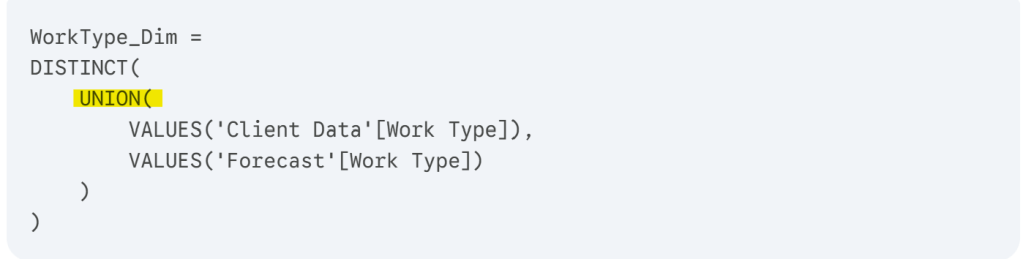
Once you have crated the new dimension table and confirmed the values are unique them go to Model View to set up the relationship.
- Drag Work type from WorkType_Dim to each fact table.
- Ensure Cardinality is set to One to Many (1:*).
- Ensure Cross filter direction is set to Single
(Arrow pointing toward the fact table).
After updating the relationships, going to your visuals and replace any
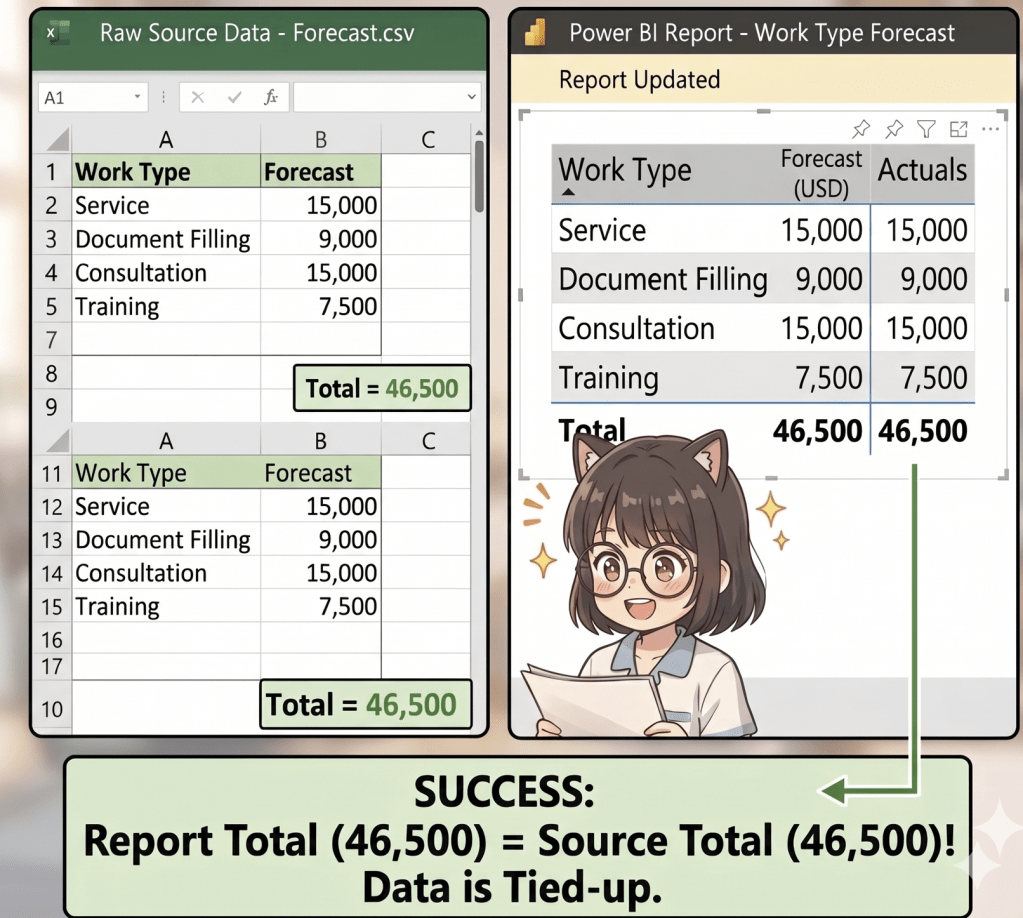
“Work Type” fields from the individual tables with the one from your new WorkType_Dim table. Everything should align perfectly after that.
💥BOOM ! The number are tied-up💥
🧶Trick : For a large firm, using these “Bridge” tables is the best way to handle data that comes from different sources (like Client files vs. Internal Forecasts). It creates a “Single Source of Truth” for your Origin and Team names, making your Power BI dashboard much easier to maintain.
Hope the context help you solve your tiny issued.
Welcome to all feedback or if you have other suggestions to maintain your data, please give me a comment. 🤎


Leave a Reply