
One of the most deceptively complex problems I’ve faced is date formatting.
After data source updating I refreshed the data and …. there is something happened with my report.
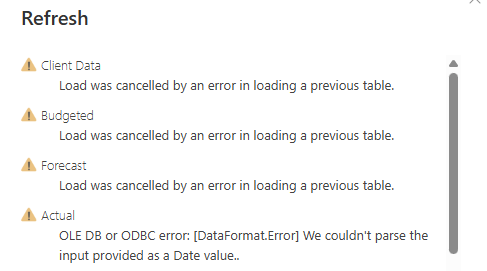
💥The root cause :
The error “OLE DB or ODBC error: [DataFormat.Error] We couldn't parse the input provided as a Date value” means
A column I’ve designated as a Date, but it found something it doesn’t recognize—like text, a blank space, or a date format that doesn’t match my regional settings (e.g., “31/13/2023” or “N/A”)
I never imagined it would trigger a domino effect of errors. 😵💫
After checking the error, this is what I found
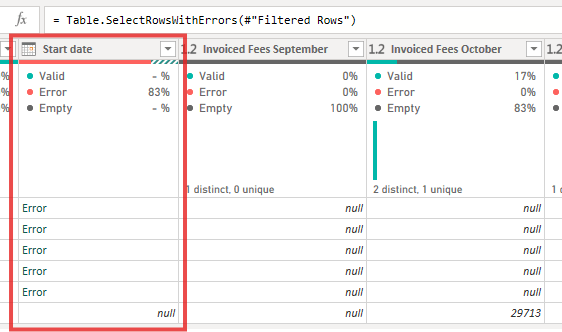
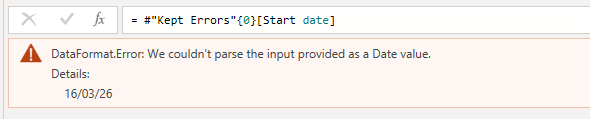
❌ I can’t fix by using Change Type > Using Locale…
❌ I can’t fix by split data by delimiter then combine them by MM/DD/YYYY
🧩 Here is what I did : Life saving by M Code
I back to automatic change type that look for date type then searching for how to consistency handle the date columns.

I broke the data type transformation into two parts.

Then forcing Power Query to read the error date 16/03/26 correctly as Day/Month/Year, by using Table.TransformColumnTypes ( ) with the optional Culture argument or separate the date transformations.
I have updated the #"Changed data type" step to specifically handle the date columns using the "en-GB" (United Kingdom) culture, which recognizes the DD/MM/YYYY format.
Finally the problem is solved !!! 💥💥💥
😆 It was a huge learning moment for me:
I should have avoided using automated date steps in Power Query.
If you have the better solution or easier than this
Welcome to all advisory 🖤


Leave a Reply