
Regular expression or REGEX is the new built-in function which allow you to search, extract, replace and test text based on complex pattern. You can manipulate data without needing VBA.
REGEX was launched in Microsoft 365 in May 2024 for Beta channel, and generally available in Excel 365 version in early 2025.
However, REGEX was well-known function in Google Sheet for long time.
Anyways, I am not gonna talk about Google Sheet. 😄

Let’s turn around to our EXCEL !!
🧩 What does the complex data look like ?
- Left msg for John Doe at (555) 123-4567. Alt num: 555.987.6543 ext. 101. Email: jdoe@provider.co.uk
- CALL BACK IMMEDIATELY – 1-800-555-0199 (Urgent). Customer also mentioned office line 555 555 2222.
- Spoke with Sarah (billing dept). Direct line: +1-555-555-8888. Primary contact is sarah.smith123@work-place.org. Also try 5555557777.
Lots of information combine in a cell, but but we only utilize specific portions of that data. 😵💫
🧩 Available Regex function in Excel.
=REGEXTEST(text, pattern, [case_sensitivity]):
Checks if a specific pattern exists within a text string and returns TRUE or FALSE. This is useful for data validation.
=REGEXEXTRACT(text, pattern, [return_mode], [case_sensitivity]):
Extracts one or more parts of the supplied text that match the regex pattern.
=REGEXREPLACE(text, pattern, replacement, [occurrence], [case_sensitivity]):
Searches for the regex pattern in the text and replaces all matches with a specified replacement string.
🧩 Pattern for Regex
📖 To be note “pattern” for the function is sensitive case. 📖
Pattern for extract, search, replace and test text based.
Before diving through any pattern we should know about basic characters.
💡 Basic symbol
^ caret – to look for first letter.
🎀 Exp.
^V = Vienna, Valentino, Volcano
^c = cat, cap, car
$ dollar sign – to look for last latter.
🎀 Exp.
$k = Denmark, think , task
$D = SWITZERLAND, TrenD, leaD
. dot – to match with any characters.
🎀 Exp.
r.d = rEd, r&d, rRd
\ backslash – to create special sequences that represent character classes
🎀 Exp.
\d – match any digits <> \D – match non-digits
\w – match any words character
\s – match any space
\b – match a word boundary
💡Character Class
[ABC] – match only character in [ ]
[A-Z] – match all capital letters
[A-z] – match all letters
[a-z] – match all lower letters
[0-9] – match all digits
[ ] is kind of box that you can put any character that you look for.
💡 Quantifiers
To define how many times the preceding character or group should occur.
* – to match zero or more
+ – to match one or more
? – to match zero or one (have or not have)
{3} – to match exactly 3 characters
{4,10} – to match min 4 , max 10 characters

Feel like dizzy with a lot of symbol, class etc.😵💫
🧩 Let’s see the example
Commonly used REGEX function properly be =REGEXEXTRACT ()
For another Regex functions on the pattern part you can apply with similar concept.
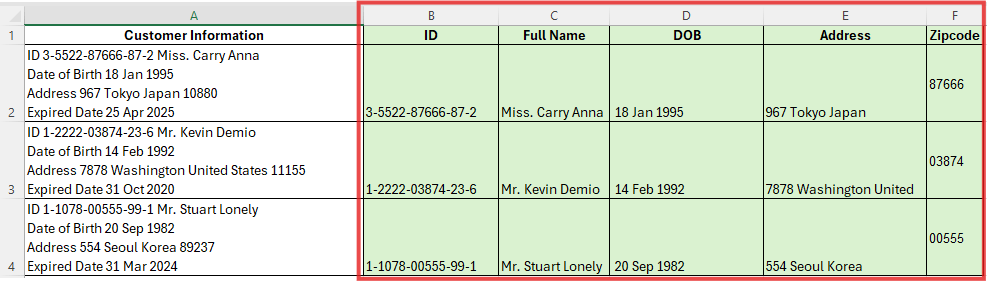
Column A is the based complex data that we have, then column B-F are the portion of data that we want.
How to extract it > Let’s burn your brain with =REGEXEXTRACT() (hahaha 😄)
📖 Column B = ID number you will see the pattern of the detail is
x-xxxx-xxxxx-xx-x then extract the data.
Syntax
=REGEXEXTRACT(A2, “[0-9]-[0-9]{4}-[0-9]{5}-[0-9]{2}-[0-9]”)
Read
To match text from column A2 by [looking for any digits 0-9] – [looking for any digits 0-9 by limit 4 characters] – [looking for any digits 0-9 by limit 5 characters] – [looking for any digits 0-9 by limit 2 characters]-[looking for any digits 0-9]
📖 Column C = Full name concept is to pull out specific part.
Syntax
=REGEXEXTRACT(A2, “M[a-z]+. ([A-Za-z]+) [A-Za-z]+”)
Read
To find a word starting with ‘M’, followed by some lowercase letters, ending with a period (e.g., Mr., Ms., or Mrs.) then capture the next full word and show it to me. After that there is another word afterward (the Last Name), but since it’s not in parentheses, the formula ignores it.
📖 Column D = DOB (Date of birth) this is hunting for a specific pattern of numbers and letters that represent a day, month, and year.
Syntax
=REGEXEXTRACT(A2, “\s+(\d{2}\s+[A-Za-z]+\s+\d{4})”)
Read
Look for one or more spaces. This ensures the date isn’t stuck to the front of another word, then Look for exactly two digits and another space separating the day from the month. Look for a bunch of letters and one more space before the final piece. Final part look for exactly four digits.
📖 Column E = Address is more flexible version of the one we just looked at. Instead of looking for a specific title or a 4-digit year, it is looking for a number followed by two words.
Syntax
=REGEXEXTRACT(A2,”([0-9]+ [A-Za-z]+ [A-Za-z]+)”)
Read
To find a number, then a space, then a word, then another space, and finally one more word—and grab the whole thing.
📖Column F = Zip code is simple one
Syntax
=REGEXEXTRACT(A2,”\d{5}”)
Read
To match any number 0-9 limit 5 digits.
🤩 Finally we got basic of REGEX function.
Hope it can be one of beneficial blog that we help you manipulate the complex data.
The journey never end, see ya ! 🖤
 Home Page
Leave a comment