
Welcome back to Learning space
Over the last three weeks, we have discussed data transformation concepts that can be applied in Excel and Power BI to prepare data sources for analysis.
To discover more trick and tips, I would like to integrate techniques including combining data, creating custom column, exploring M language syntax and building functions etc.
Let’s elevate our skill to the next level~
🧩 M Language
M stands for Data Mashup which is the language behind applied step in Power Query.
This one of case-sensitive languages which means that identifiers and string comparisons treat different capitalizations (e.g., “Product”, “product”, and “PRODUCT”) as distinct values.
⭐⭐ To Remember: M-Language is Case-Sensitive. Always start your function names with a Capital letter!
text.properwill fail.Text.Properwill work.
The M code can preview by looking at the formula bar or …

opening the Advance Editor.
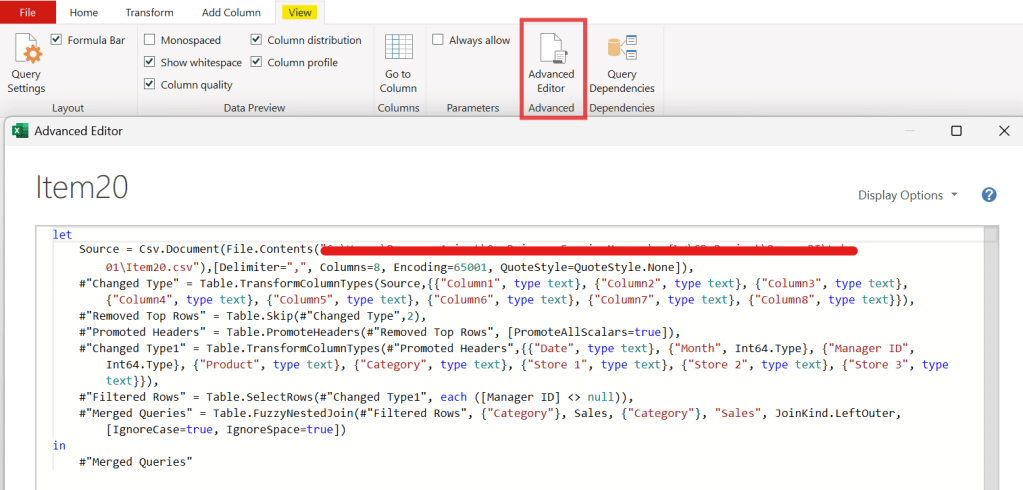
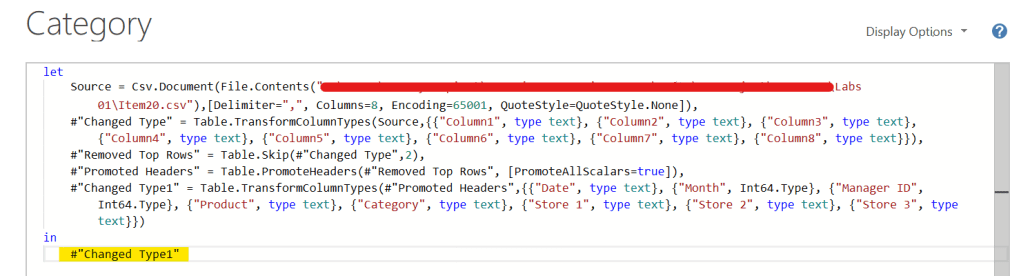
M code expression is “Let” clause and “In” clause, it’s using comma-separated for step identifiers.
In each step build upon previous step by referring to its names. The final step return output follows “In” cluse
For example
The initial data source file .csv contents then PQ changed data type automatically, after that remove unnecessary rows. Promoted top row as a header then final step is changing column to proper types so “In” clause will return “Change type1”
💡 Value types and structure
- Single-part value : number, logic, text or null
- List are structured only one column : List = {1,2,3}
- Record defines a single row with multiple columns in [ ]
- Table contains multiple rows and columns
- Function is value that invoked with arguments to produced a new value.
💡 Custom functions
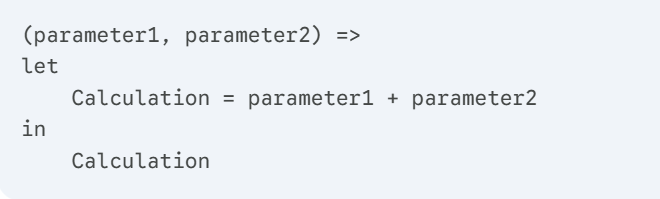
It required when you need complex calculations , invoke parameter input or seek to optimize performance for a query.
Syntax :
(parameter1, parameter2) =>Calculation = parameter1 + parameter2
💡Query parameter
It’s placeholder to dynamically pass values to a query and making the more flexible and reusable.
💡 Built-in M functions
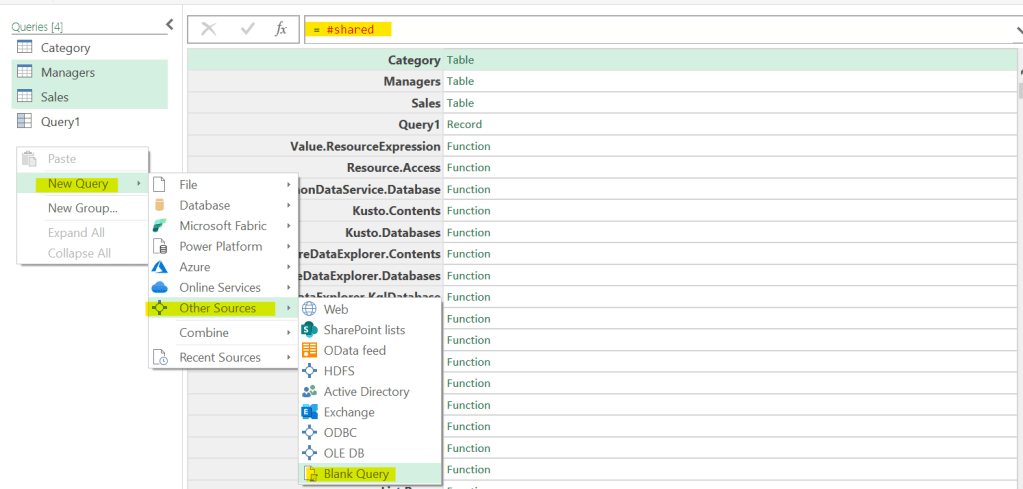
To represent M functions in Power query = Creating blank query > input “=#shared” in formula bar. It’s helpful to convert it to table and easier to search. It’s kind of manual that show description of its and the overview of inputs and outputs.
📖 Here is the useful M code Date & Time
Date.From: Converts text or numbers into a proper Date format.Date.EndOfMonth: Perfect for finding the last day of a period.Date.ToText: Converts a date to a specific format like “MM-YYYY”.Duration.Days: Calculates the difference between two dates.- Example:
Duration.Days([End] - [Start])
- Example:
📖 Math & Number Crunching
Number.Round: Rounds to a specific number of decimal places.Number.From: Force-converts a string like “100” into a calculable number.Number.Abs: Returns the absolute value (turns -10 into 10).
📖 The “Helper” Functions
These help you navigate table structures.
Table.AddIndexColumn: As we discussed, adds a unique row ID.Replacer.ReplaceValue: Used inside other functions to swap specific characters.Value.Is: Checks the data type
(e.g.,if [Value] is number then ...).
“Tying up a few loose ends.”
🧩 Combining queries
To consolidate data from multiple sources can be saved your time from manually combine table by using these two operations in power query which are “Append” and “Merge”.

Append operation is stacking dataset vertically.
In addition, this operation queries must have same column names and data types. For no data exist in the main table those columns will show “null”.
Merge operation is combining dataset horizontally based on matching common contents in tables.
There are multiple types of joining tables as the picture below,
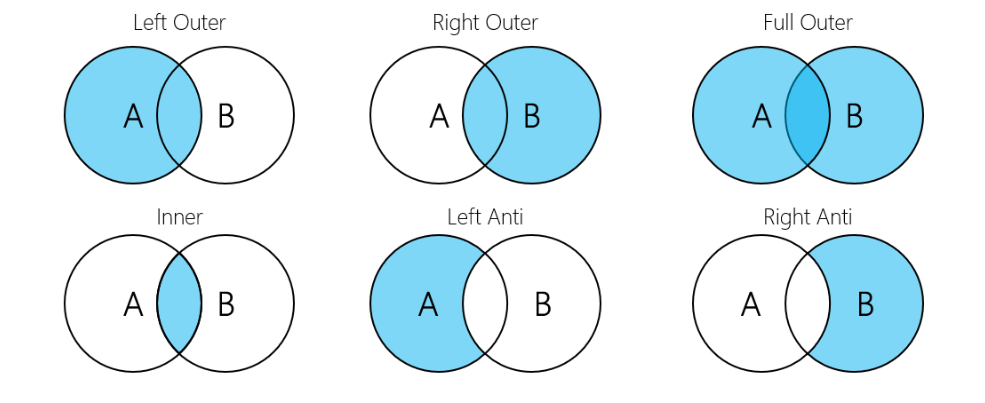
Merge operation needs to ensure the shared key column matching with the same data types.
Here is the example for identical matches between data elements.
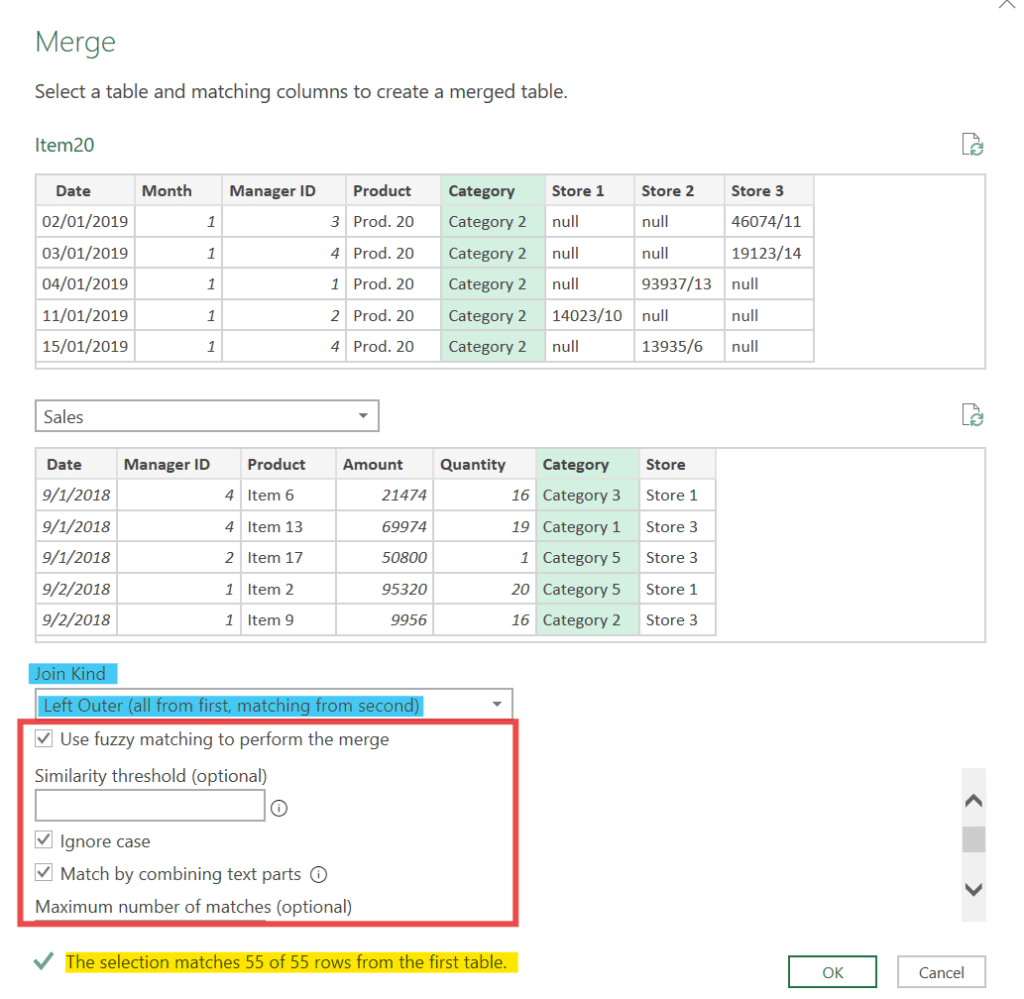
** Noted – Fuzzy mating is the optional to flexible data matching, approximate text matching, which is useful for dealing with typos or variations in spelling (e.g., “Microsoft” matching “Micro soft” or “Microsoft Inc.”). You can adjust the Similarity threshold (0 to 1) to control the exactness of the match. **
🧩 Custom Columns
The flexibly customized tool and functionality of built-in transformations whether it be advance indexing, complex calculations and nested conditional logic.
- Advance indexing refers to advanced techniques for creating custom index columns beyond the basic sequential numbering.
Common “advanced indexing” scenarios include:
Grouped Indexing: Creating an index that restarts numbering for each unique value in a specific column or group. Conditional Indexing: Adding an index only to specific rows that meet certain conditions, or changing the indexing behavior based on a condition.
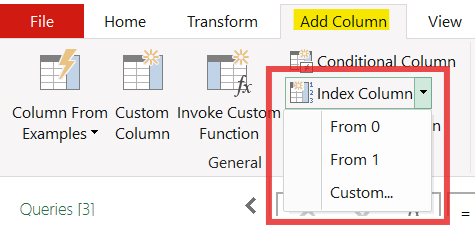
However, the normal index creation can be found in the ribbon
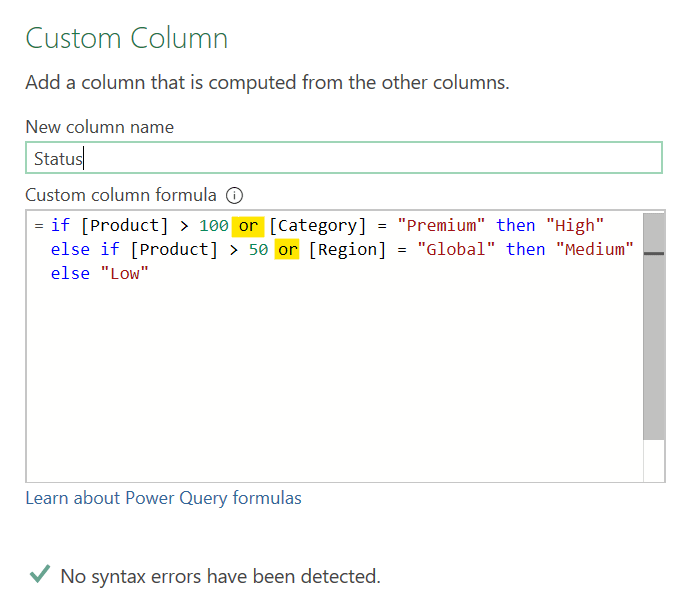
- Nested conditional logic is multiple level of conditional statements such as If…Then…Else , try…otherwise statement and also it can combine with the logic operator like AND , OR.
if…then…else: The most used “function” for creating categories or flags.
try…otherwise: Essential for error handling For example,
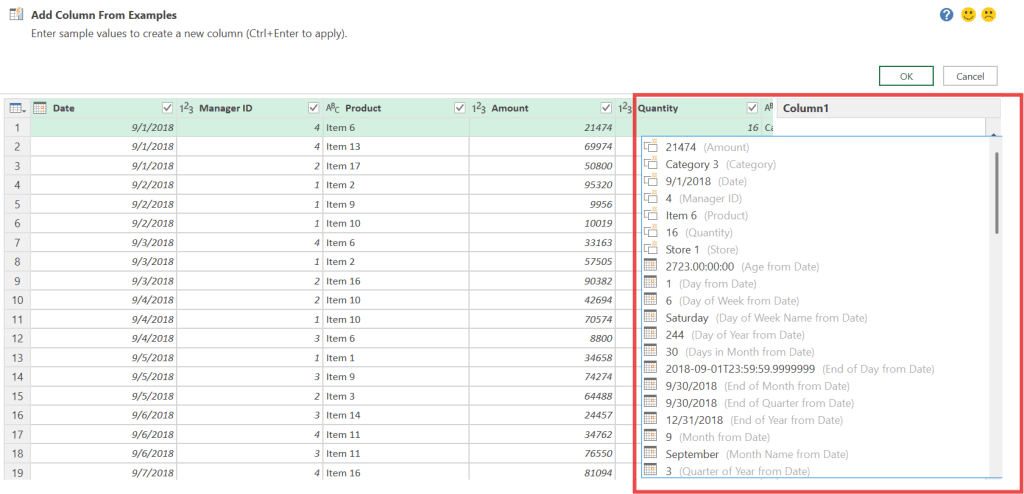
Another interesting operator of creating column is “Column from example”

When you selecting the operator that will create new column with the sample options which you can select the default or input value, the PQ will automatically recognizes then generating output for all rows.
🧩 Manage parameters
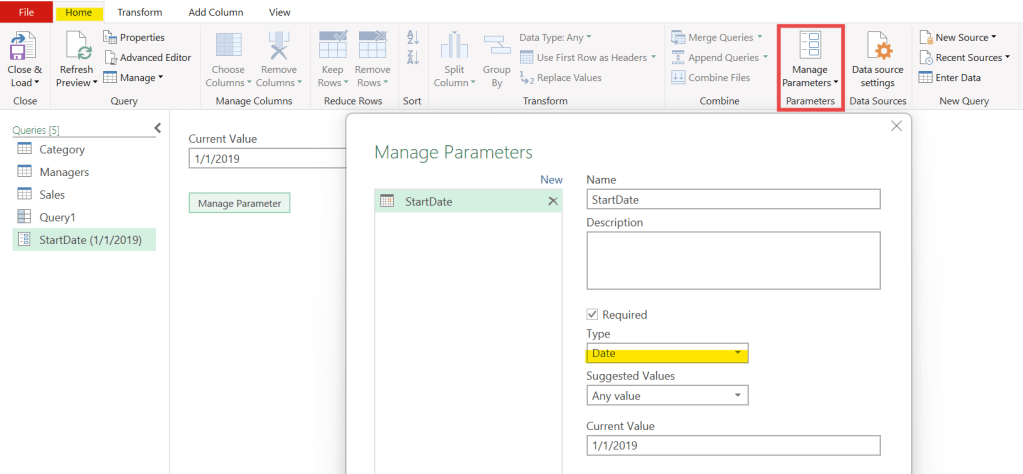
Instead of hard-coding. You can use manage parameters operator for creating special objects that store values to make queries dynamic and reusable.
We walk through till the end of Power query the series, hope it will help to reduce your time spend for repeating task and prepare appropriated data for analysis.
Thank you and see you for the next series of learning.
 Home Page
Leave a comment